Your iPhone has a secret 'hoarding' problem — here’s how to fix it
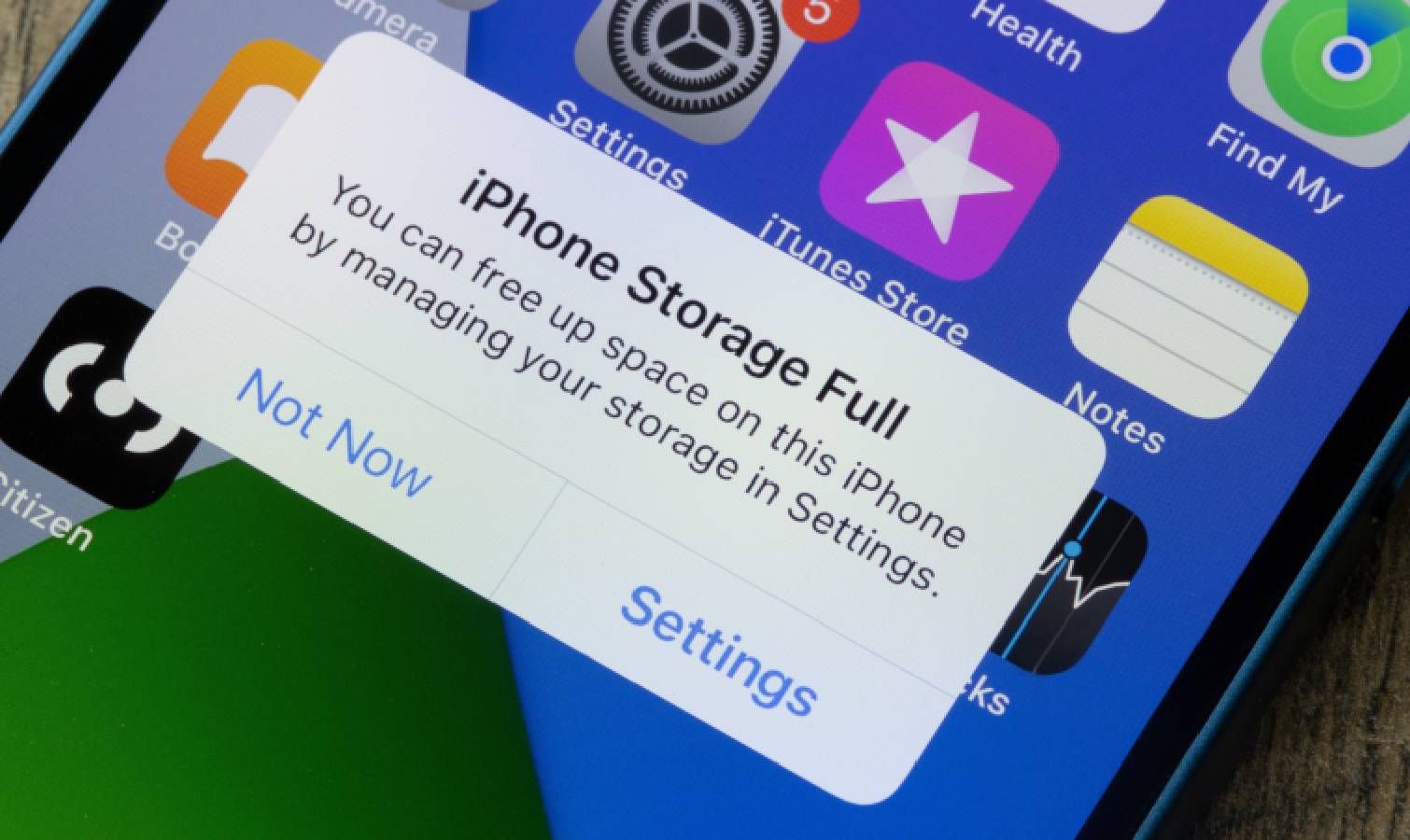
iPhone storage can be secretly consumed by text message attachments like photos, videos, and files that are automatically saved. These attachments often go unnoticed but can accumulate to take up gigabytes of space. Users can free up storage by reviewing and deleting large attachments, clearing media from specific conversations, or setting messages to auto-delete after a set period.
- ▪Text message attachments such as photos, videos, and GIFs are automatically saved on iPhones and can consume significant storage space.
- ▪Users can review and delete large message attachments by going to Settings > General > iPhone Storage > Recommendations > Review Large Attachments.
- ▪Attachments can also be deleted directly from individual message threads by accessing the Photos or Links section in a conversation.
- ▪Enabling auto-delete for messages via Settings > Messages > Keep Messages allows users to automatically remove old messages and attachments after 30 days or 1 year.
- ▪Changing the message retention setting prompts users to immediately delete older messages, freeing up storage right away.
Opening excerpt (first ~120 words) tap to expand
Phones iPhones Your iPhone has a secret 'hoarding' problem — here’s how to fix it How To By Kaycee Hill published 29 April 2026 The quick fix for the sneakiest storage hog on your iPhone When you purchase through links on our site, we may earn an affiliate commission. Here’s how it works. (Image credit: Shutterstock) Jump to: Protect your iPhone Copy link Facebook X Reddit Email Share this article 0 Join the conversation Follow us Add us as a preferred source on Google Newsletter Subscribe to our newsletter iPhone storage fills up fast.
…
Excerpt limited to ~120 words for fair-use compliance. The full article is at Tom's Guide.
Discussion
0 commentsMore from Tom's Guide